Introduction to ComfyUI
ComfyUI is a node-based graphical user interface (GUI) specifically designed for Stable Diffusion, aiming to simplify and optimize the image generation process. By breaking down the entire image generation process into multiple independent nodes, it allows users to flexibly build and adjust workflows.
Each node performs a specific function, such as loading models, inputting text prompts, generating images, etc. This structure gives users better control over the generation process, enhancing customizability and reproducibility.
Github Address
https://github.com/comfyanonymous/ComfyUI
Installation Methods
Command Line Installation (Mac)
The steps to install ComfyUI are relatively straightforward, typically including the following:
- Clone the repository
- Open the Terminal application.
- Enter:
git clone git@github.com:comfyanonymous/ComfyUI.git
- Install dependencies
- Install Miniconda. This will help you install the correct versions of Python and other libraries required by ComfyUI.
- Create a Conda environment.
- Enter:
conda create -n comfyenv
- Enter:
conda activate comfyenv
- Install GPU extensions (Mac)
cd comfyUIpip install -r requirements.txt
- Launch the application
cd ComfyUIpython main.py
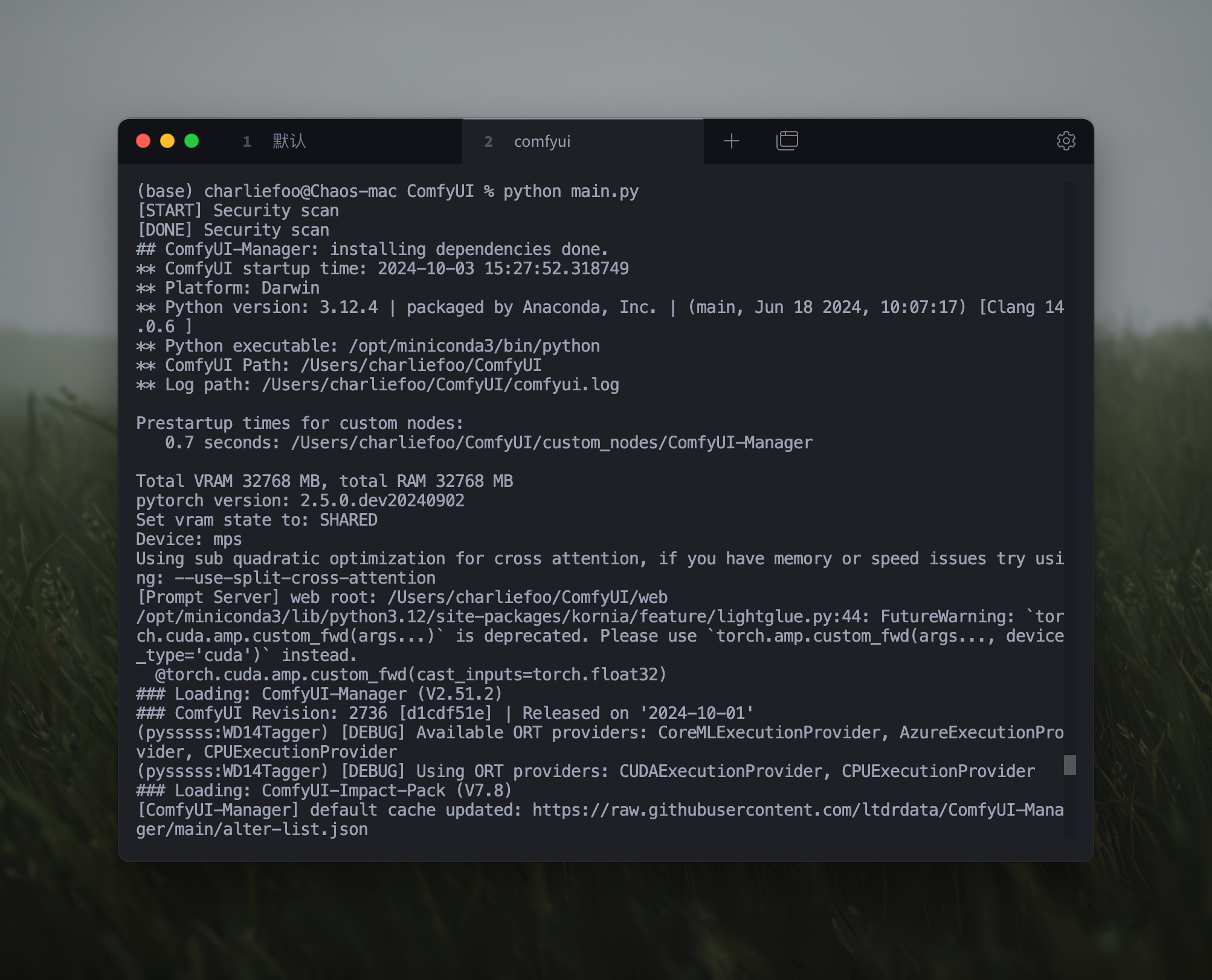
More platform-specific installation details
After completing all installations, you can access the operation interface by visiting http://127.0.0.1:8188/ in your browser.
Client Installation
Comflowy Space
Comflowy Space is a product developed based on ComfyUI. Its core is still ComfyUI, and it serves as a conveniently managed integrated client.
Official Website
https://comflowy.com/zh-CN
Github Address
https://github.com/6174/comflowy
Model Management
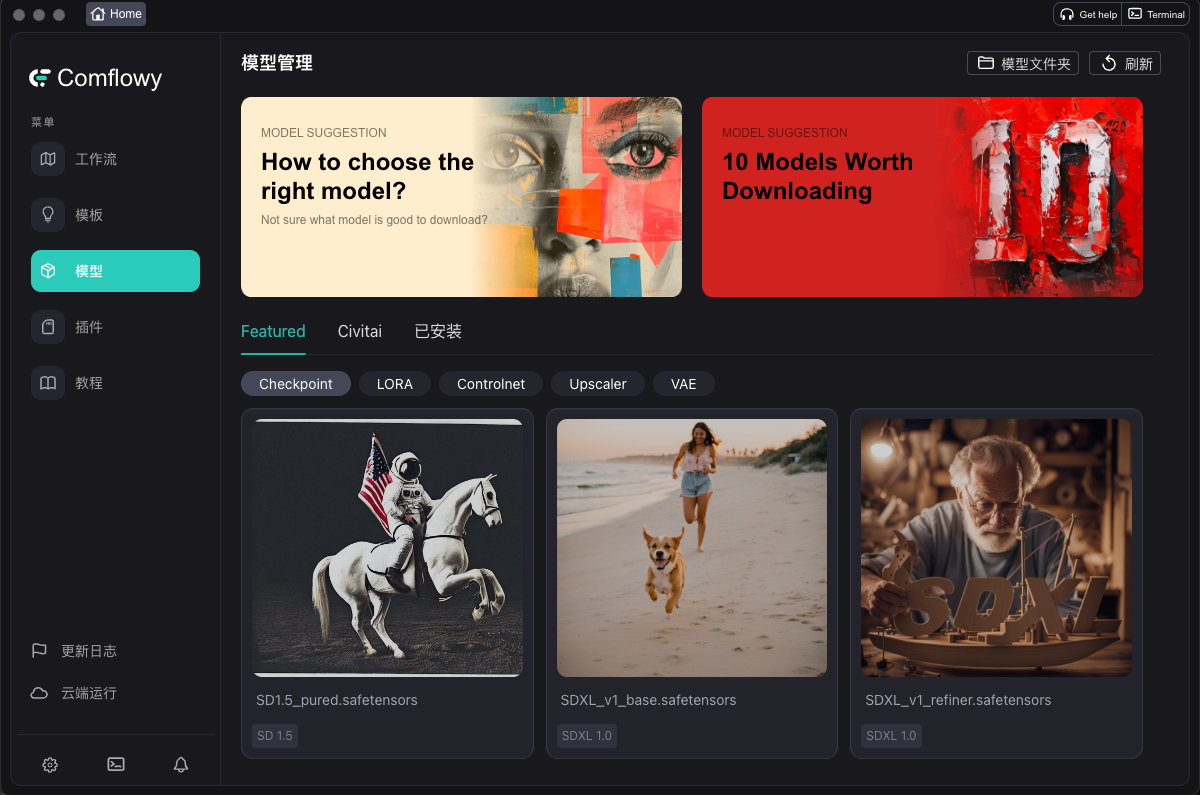

The client provides direct download and management of models. Users can download models through official channels or Civitai. After downloading, models are saved in a specified local folder.
Plugin Management
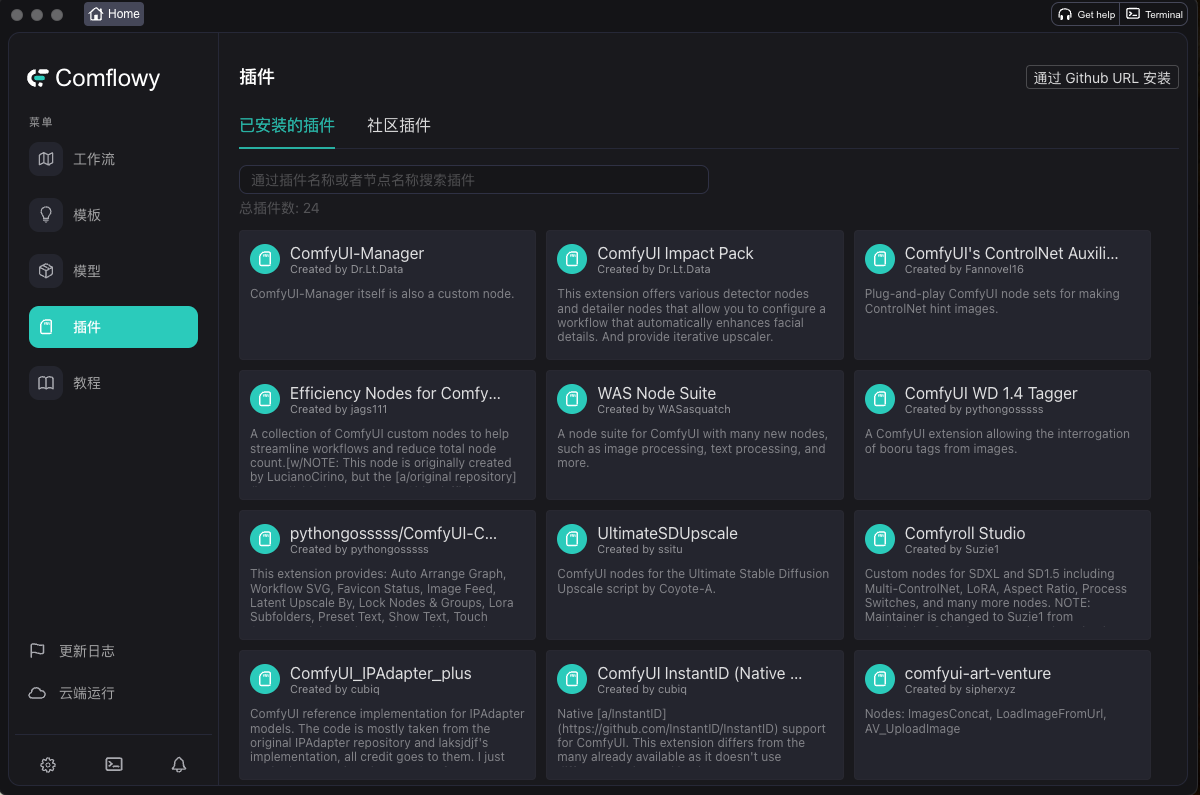
The client provides plugin downloads. Users can directly search and download plugins through the community plugin channel. Plugins requiring updates will display an update button in the top right corner.
Lanrui Xingzhou
A website for renting cloud servers, billed by time. It integrates ComfyUI and SD WebUI images, allowing users to create instances quickly.
Website Address:
https://www.lanrui-ai.com/console/overview
Comflowy
The cloud service version of Comflowy Space. It allows one-click deployment of Comflowy Space workflows to the cloud. The UI operation logic is the same as the local open-source version.
Website Address:
https://www.comflowy.com/zh-CN/preparation-for-study/install-cloud
Workflows
One convenient aspect of ComfyUI is the ability to directly use workflows created by others. Simply drag and drop them into the UI area or click the load button to use them.
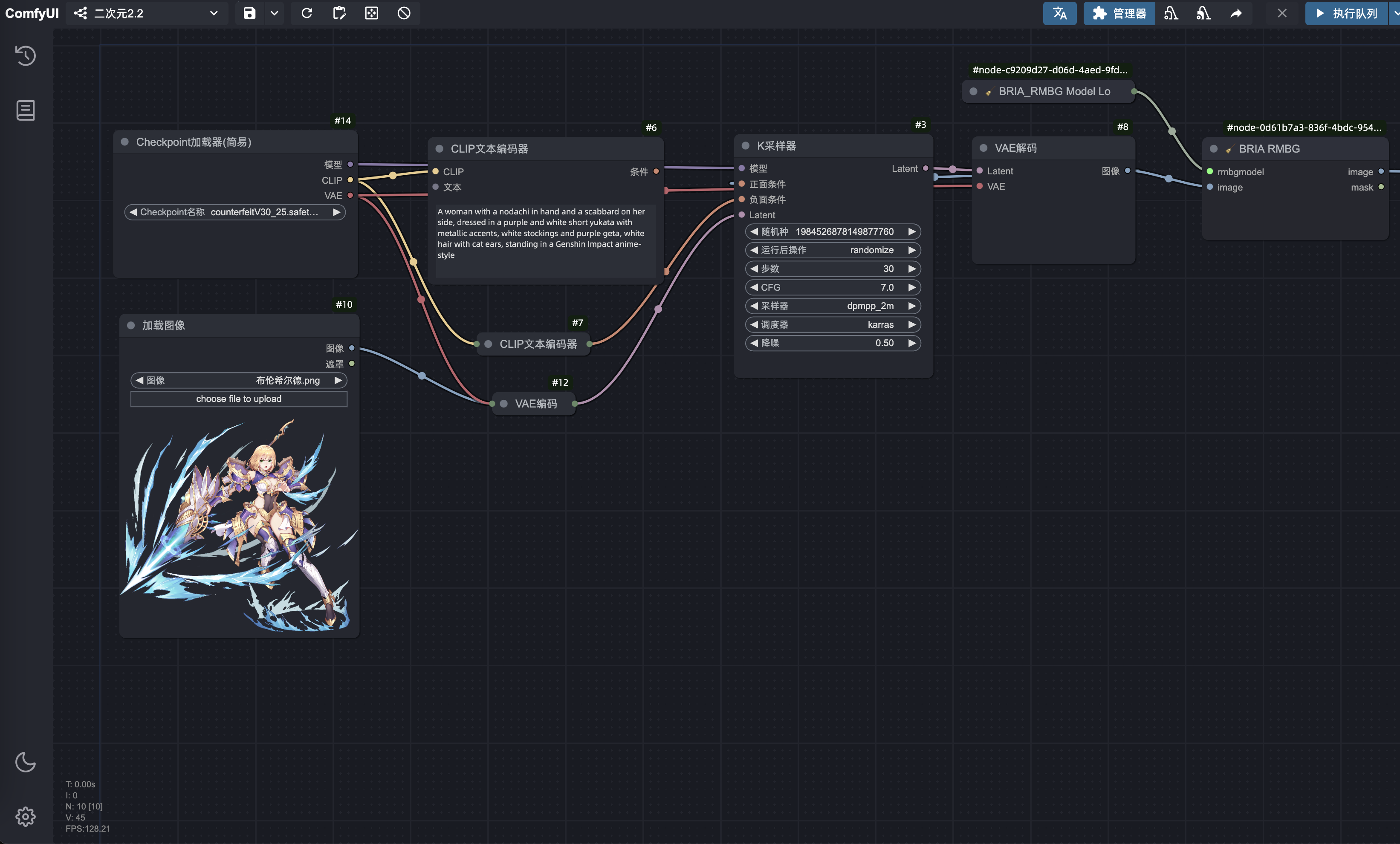
Workflow Communities
OpenArt Workflows
OpenArt provides a platform where users can discover, share, and run various ComfyUI workflows designed to leverage AI for creative tasks.
Website Address:
https://openart.ai/workflows/all
liblib
LibLib.AI is a Chinese website similar to CivitAI, offering a vast collection of finely detailed AI painting models for free download. It now also provides workflow sharing.
Website Address:
https://www.liblib.art/workflows
Models
Model Websites
Civitai
Civitai is an online platform focused on AI-generated art, primarily providing sharing and downloading of Stable Diffusion and Flux models.
https://civitai.com/models
liblib
LibLib.AI is a Chinese website similar to CivitAI, offering a vast collection of finely detailed AI painting models for free download. It now also provides workflow sharing.
Address:
https://www.liblib.art/
Model Installation
Find the desired model on a model website, download it locally, and place it in the Checkpoint, LORA, or other corresponding folders.
Checkpoint: Base models, including both Stable Diffusion and Flux models.
- Stable Diffusion is more mature, with several version branches like 1.5 and XL.
- Flux is a new model created by the original SD team.
LoRA: Style models that apply stylistic adjustments to the generated content based on the base model.
Another installation method is to install the ComfyUI-Manager plugin. In the manager interface, you can install models directly.
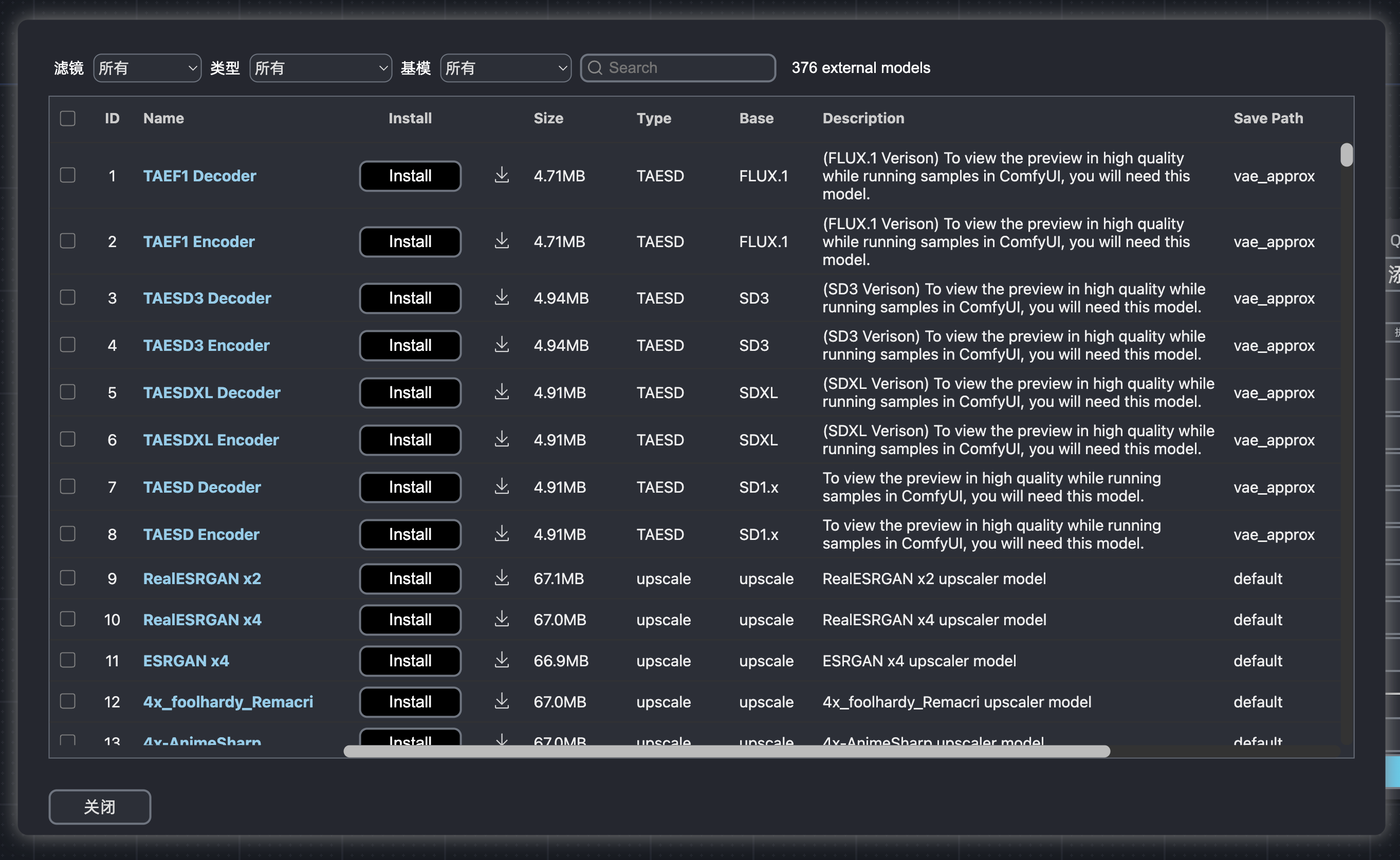
Plugins
Plugins can be understood as third-party nodes. They are integration packages created by developers in the open-source community, offering more features than native nodes.
Plugin Installation
ComfyUI Manager
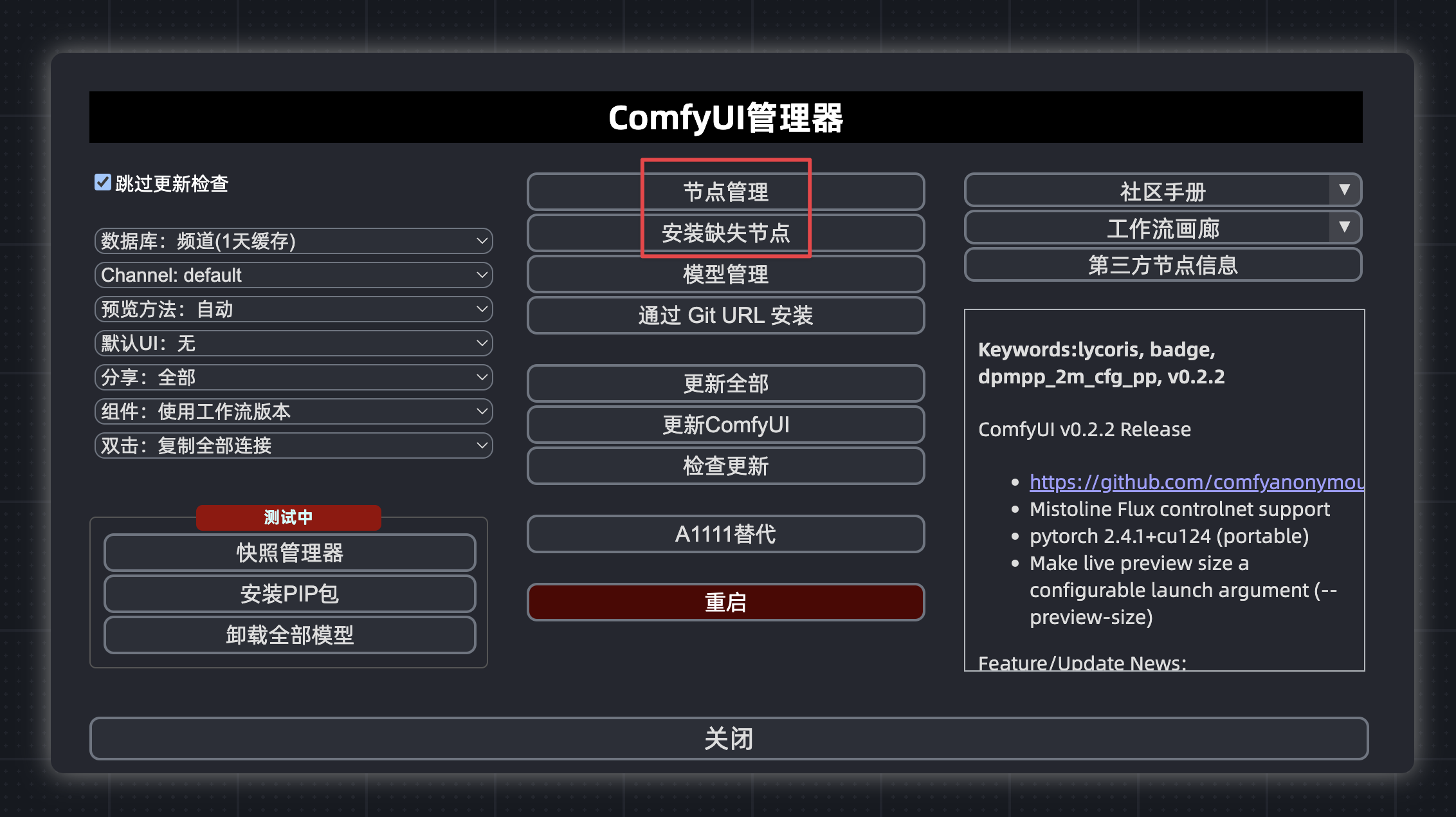
Node Management
This is a node store where you can directly search for desired plugins in the search box.
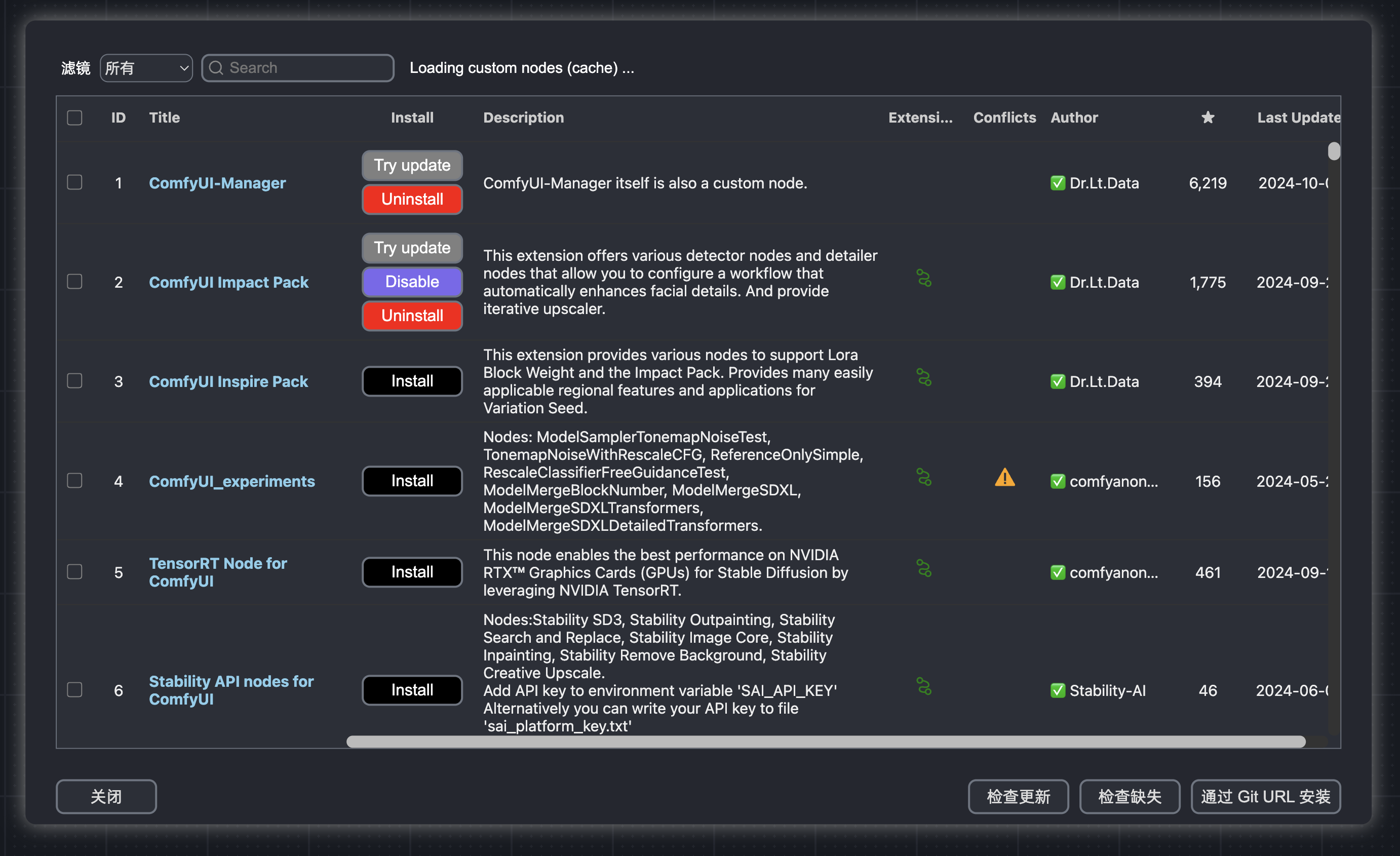
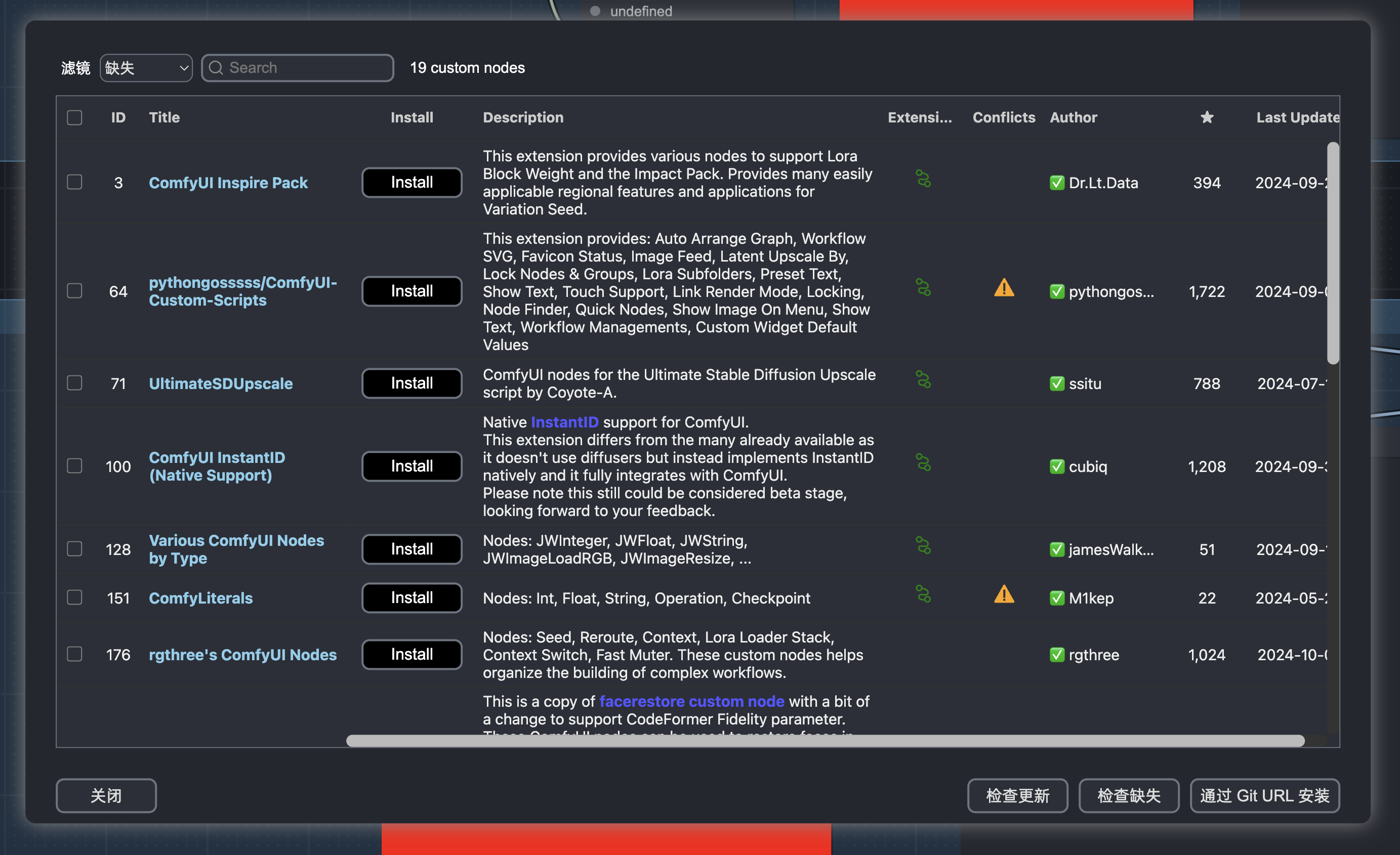
Install Missing Nodes
If you download a workflow shared by someone else and encounter missing nodes, dragging it into the workflow will pop up this window.
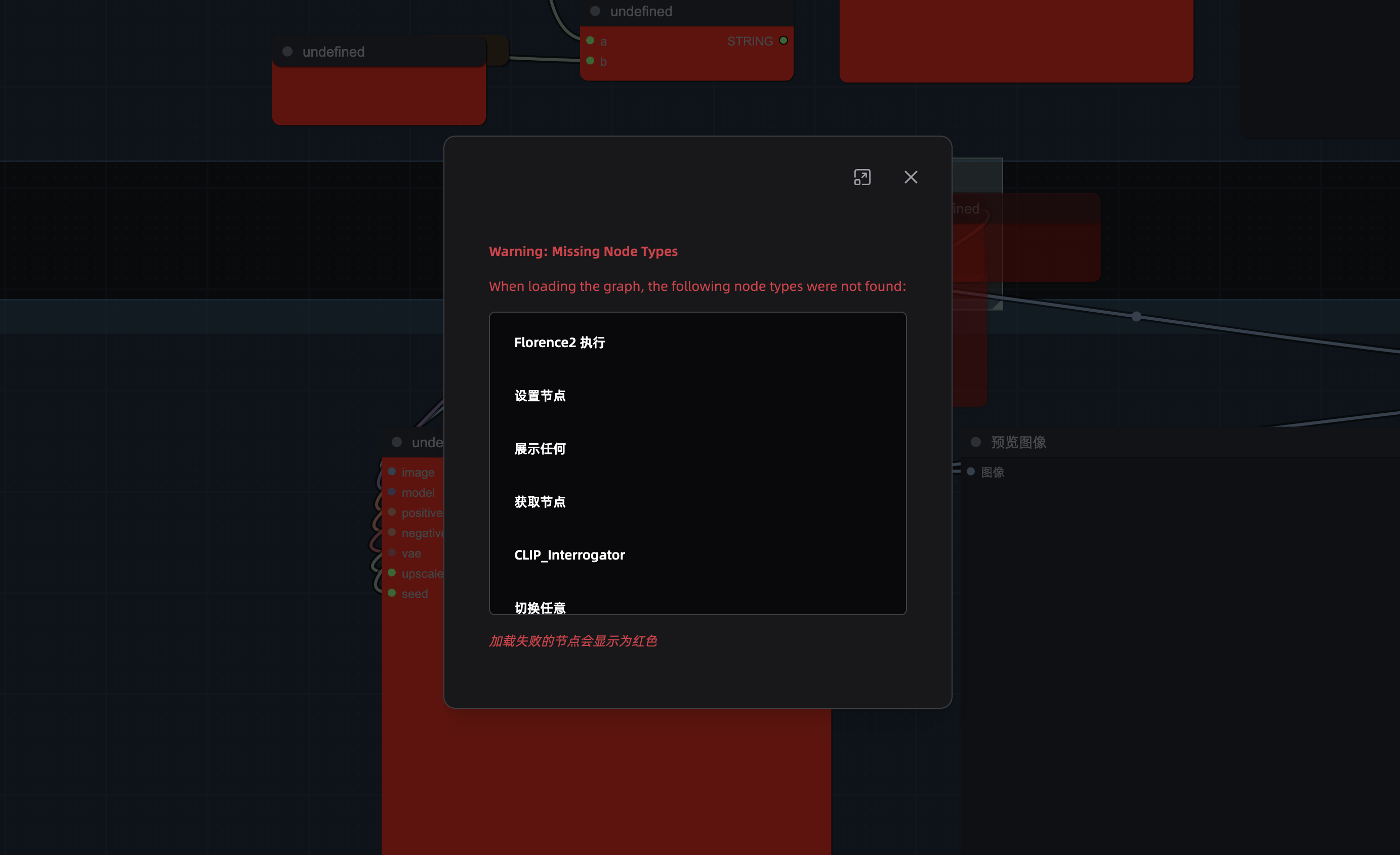
Clicking the Install Missing Nodes button in the ComfyUI Manager will list all missing nodes.
Conclusion
The ComfyUI ecosystem is flourishing. This article only records and shares the most fundamental content. I will write about workflow and model details when I have time later. Thank you for your reading time, and I hope you enjoyed it!
The RSS address for this site has been updated. Please resubscribe, dear readers!
💡 Thank you for reading! Feel free to share the article or write to me to exchange ideas.