Preface
Back in 2021, I wrote an article titled 《How to Build a Material Library》, detailing how to use the Eagle software to create a personal inspiration and material library. In 2022, I updated it with the latest ideas and understanding at the time. This year, Eagle released version 4.0, which brought significant changes to the usage approach, so I decided to rewrite the article entirely.
Software Introduction
Eagle makes it easy to collect and organize various materials for design projects, such as “case studies, inspiration, screenshots, images, videos, audio, mood boards,” and more. It sparks greater creative inspiration and enhances work efficiency!
Eagle Official Website
Inspiration Library
As a designer, collecting materials that spark inspiration is a crucial preparatory step in the design process. The richer the collection in your inspiration library, the more effort it saves during subsequent design work. In this process, the key to saving workload lies in how quickly you can collect → organize → post-process a piece of material.
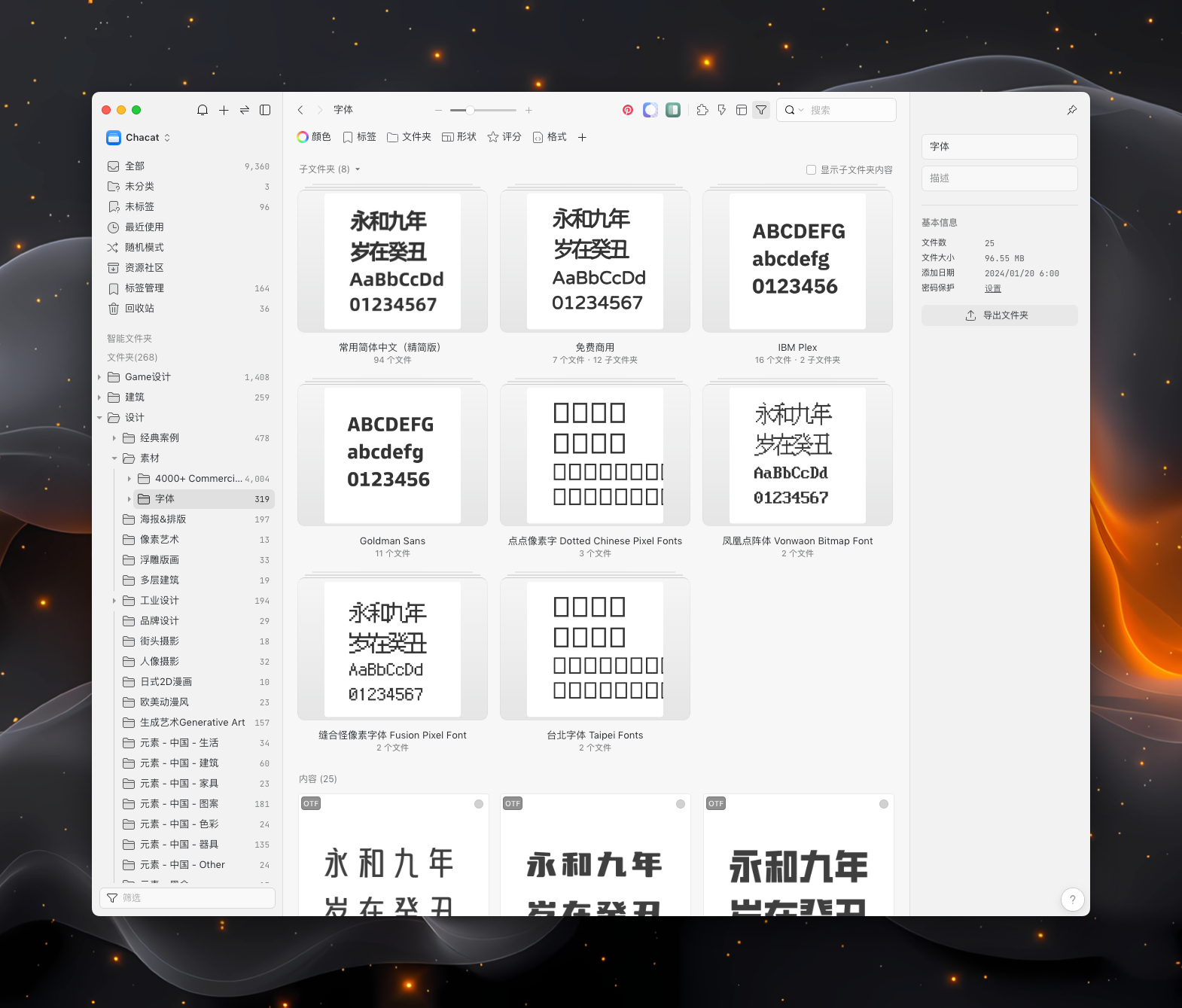
Materials commonly used in design include: vector icons, photos (illustrations), color scheme references, videos, fonts, or any other content that can be copied and used in visual design. Eagle supports all these formats, allowing for intuitive previews of the material’s style.
For example: Font effect preview
1. Collecting Materials
First, let’s discuss how to collect materials. There are generally two methods: using browser extensions or searching on material websites.
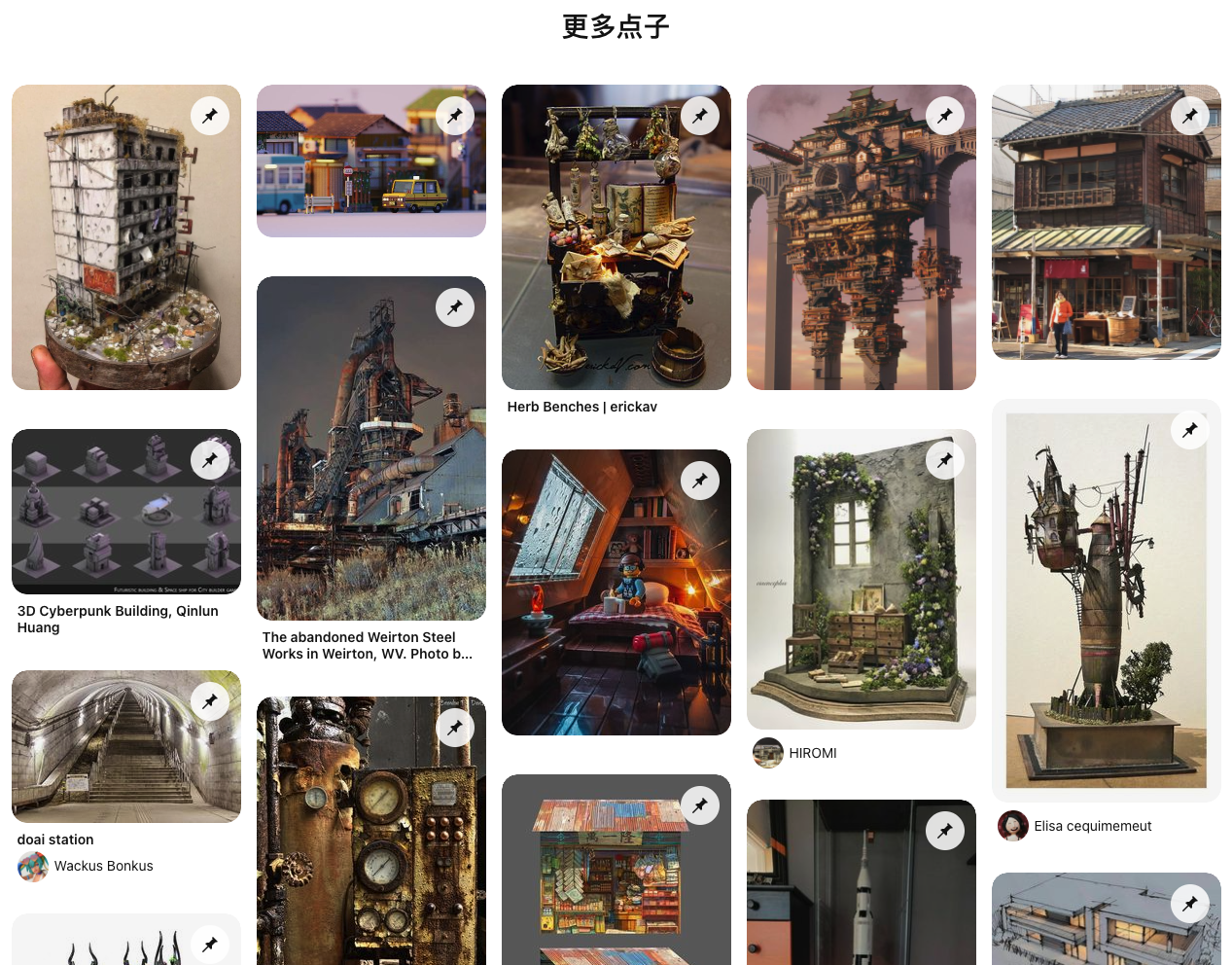
It is recommended to search for materials on websites like Pinterest or Huaban. These platforms typically have recommendation algorithms for images. After collecting a certain type of material, it’s easy to find other similar materials based on the site’s algorithm recommendations.
For example: The “More Ideas” feature on Pinterest
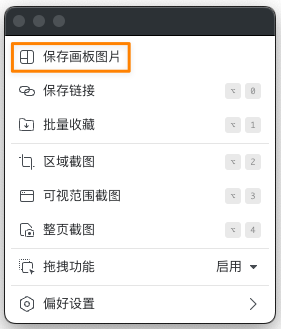
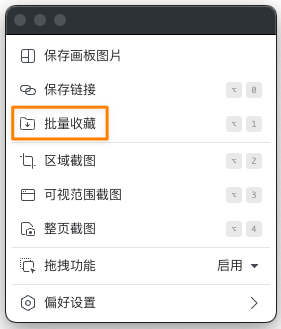
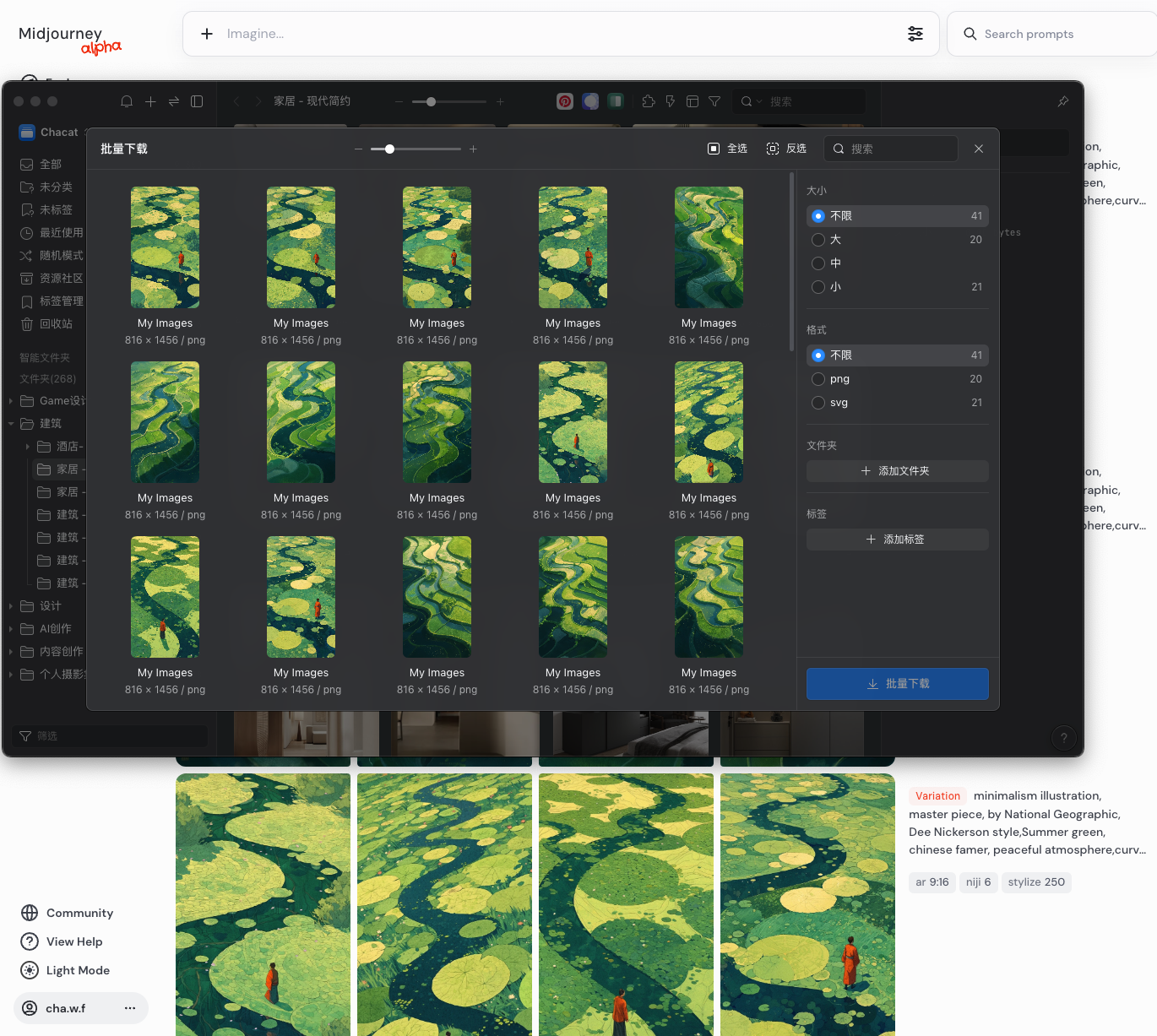
On the search results page, Eagle’s browser extension works well for batch collecting materials. Two methods are recommended here: one is saving board images, and the other is batch collecting.
- Saving Board Images: This imports all icons from a board into Eagle, creating a folder named after the board.
- Batch Collecting: This imports all images on the current page into Eagle. You can select the images you want to import. By default, they are imported into Eagle’s “All” category and require further organization.
This feature works seamlessly with the Midjourney web version!
2. Organizing Materials
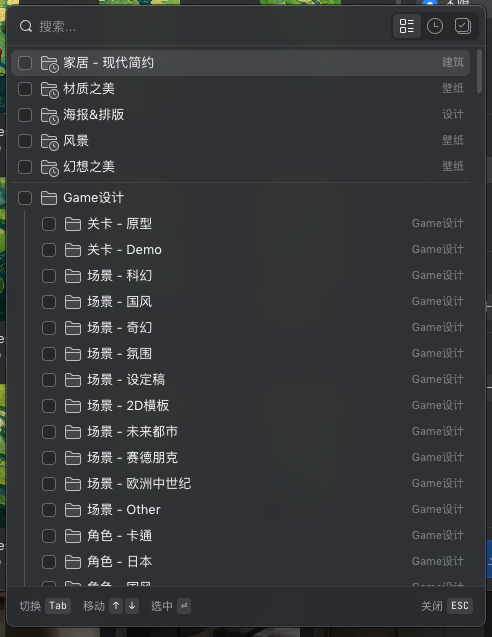
- Folder Organization
Eagle supports multi-level tree-structured folder directories. Arrange them according to your classification method. On the collection page, you can select the target folder for quick organization.
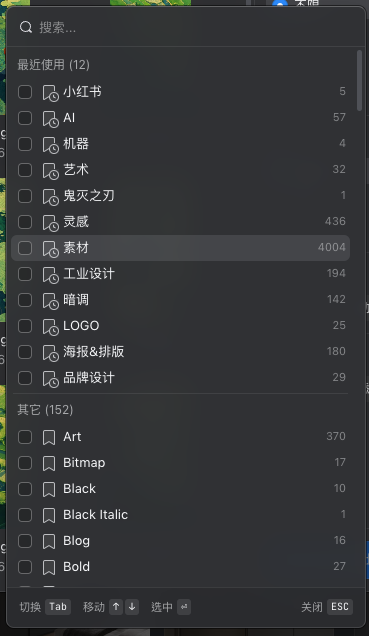
- Tag Organization
Similar to the folder approach, classify materials by adding tags. The software also recommends some tags based on image content. Choose according to your needs. For future reference, consider Notion’s AI-powered smart tagging feature for pages.
3. Searching Materials
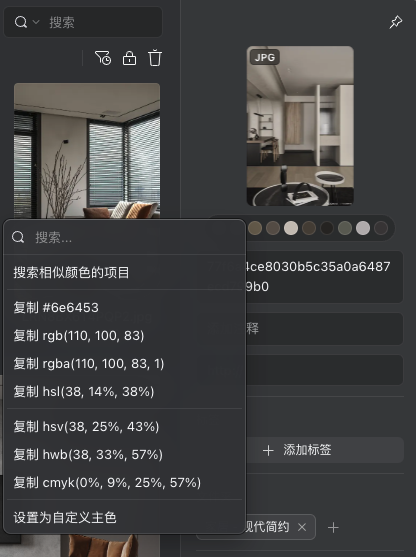
After successful collection, select an image. You can click on colors, tags, or folders to perform targeted searches.
- Color Search
Click to search for items with similar colors.
- Tag and Folder Search
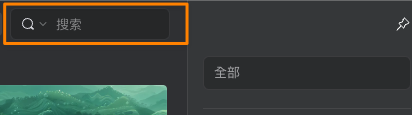
For tag or folder searches, simply enter the keyword in the search box.
- Resource Community
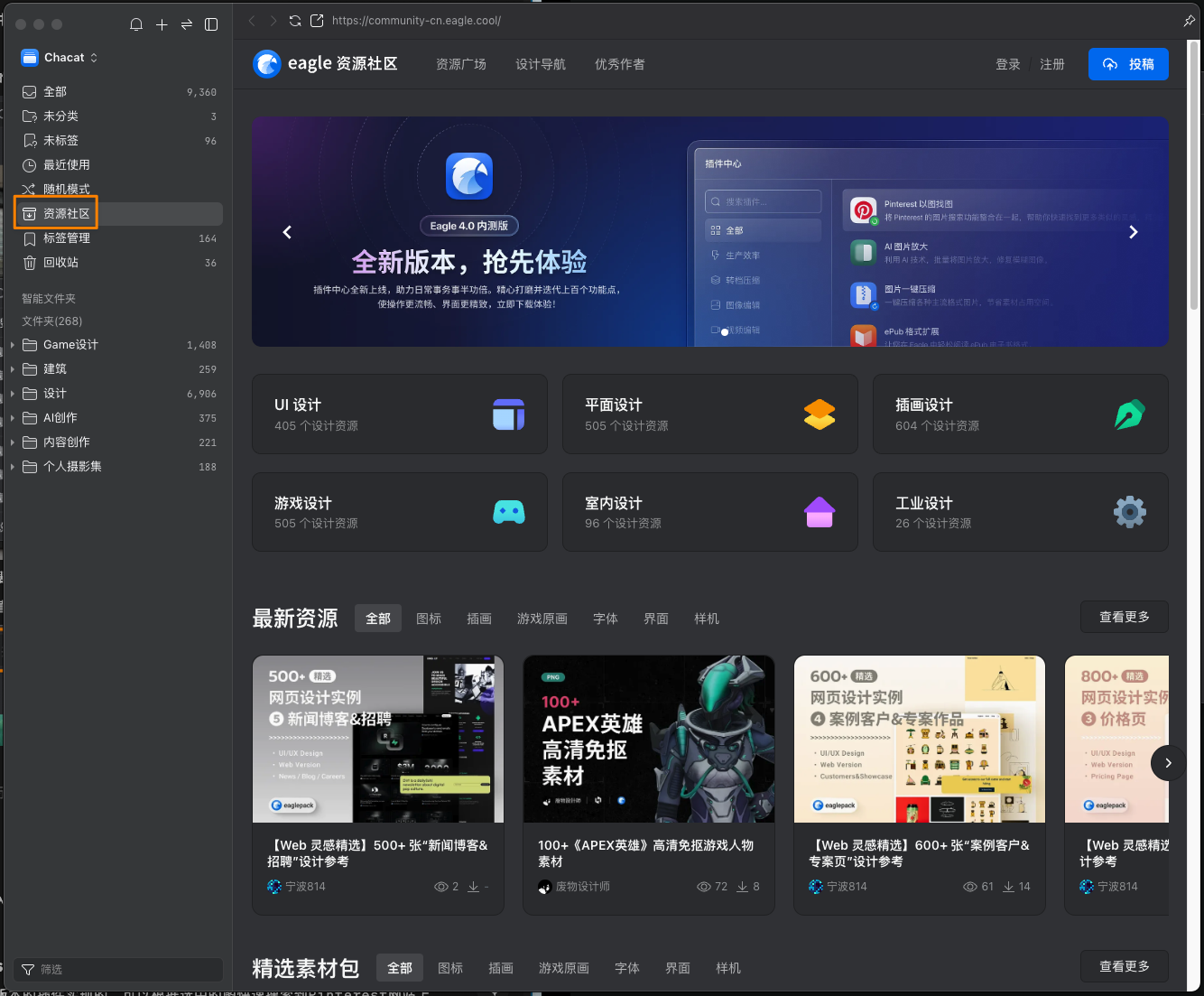
The software includes an official resource community where users and the official team share resource packs, including some open-source, free-for-commercial-use fonts, icon packs, etc.
Plugin Introduction
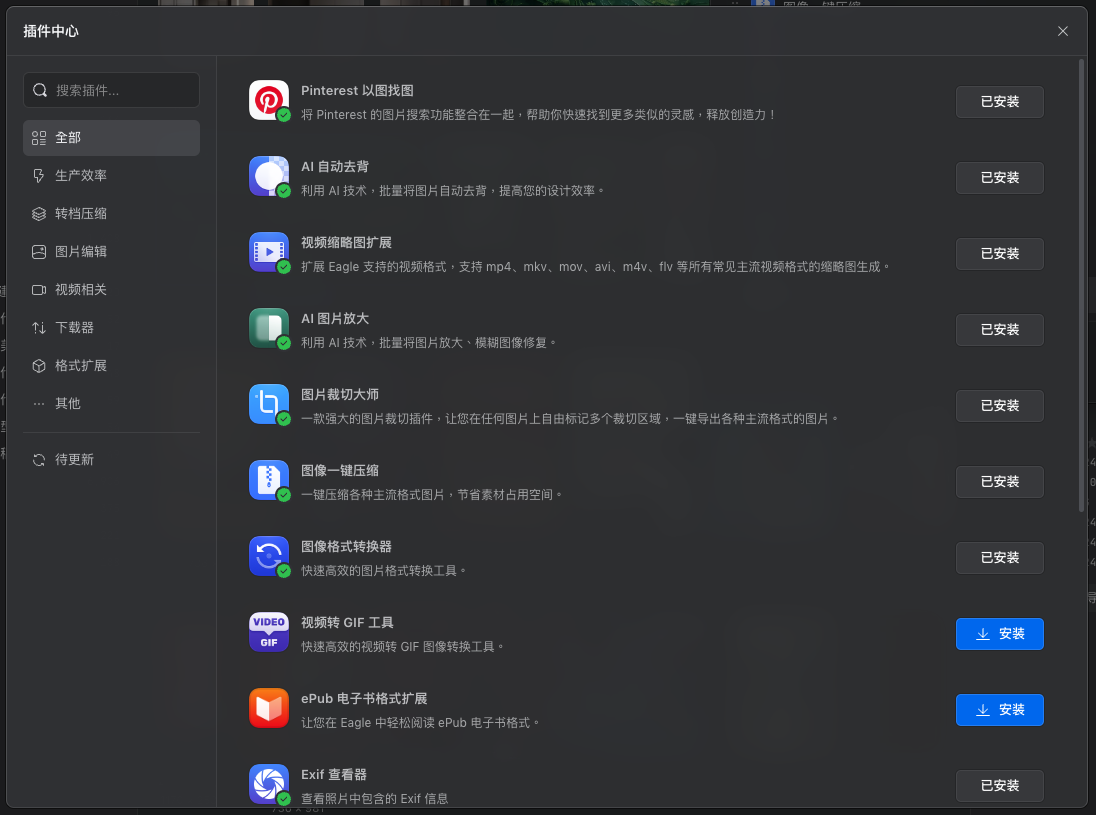
In version 4.0, a plugin system was introduced. You can easily search for and install plugins from the store and conveniently pin them to the main interface.
1. Pinterest Reverse Image Search
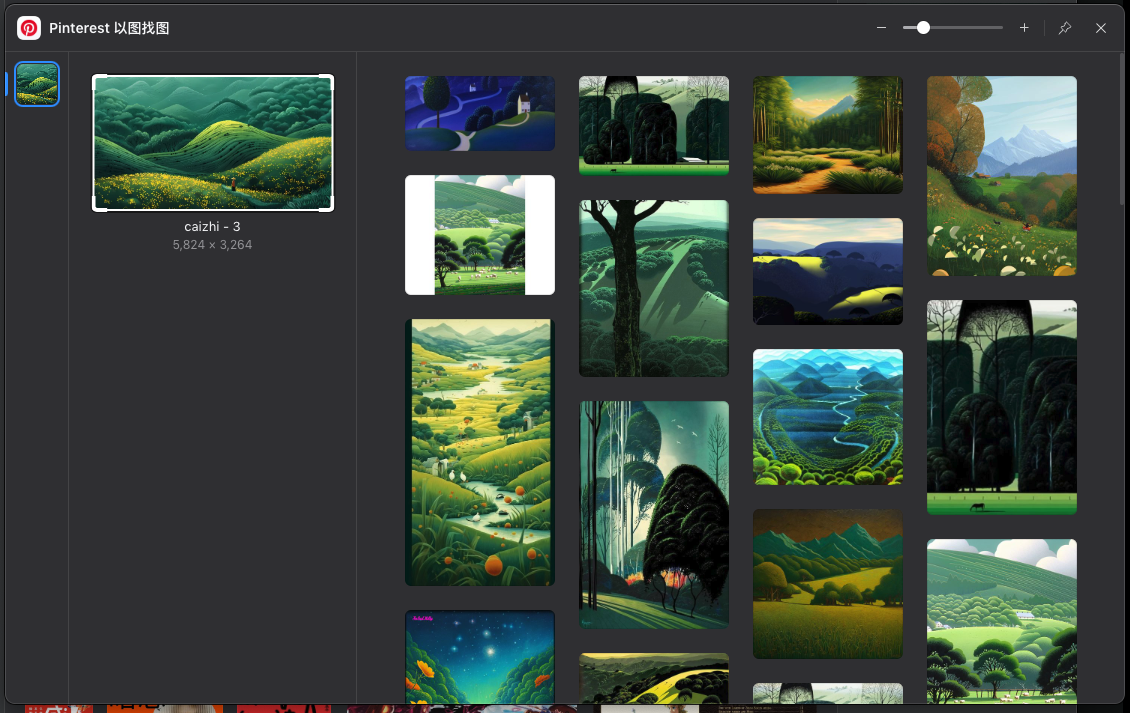
This feature is implemented via a plugin in version 4.0. It allows you to quickly search for images on Pinterest based on a selected image without having to visit the website again.
2. AI Image Upscaling
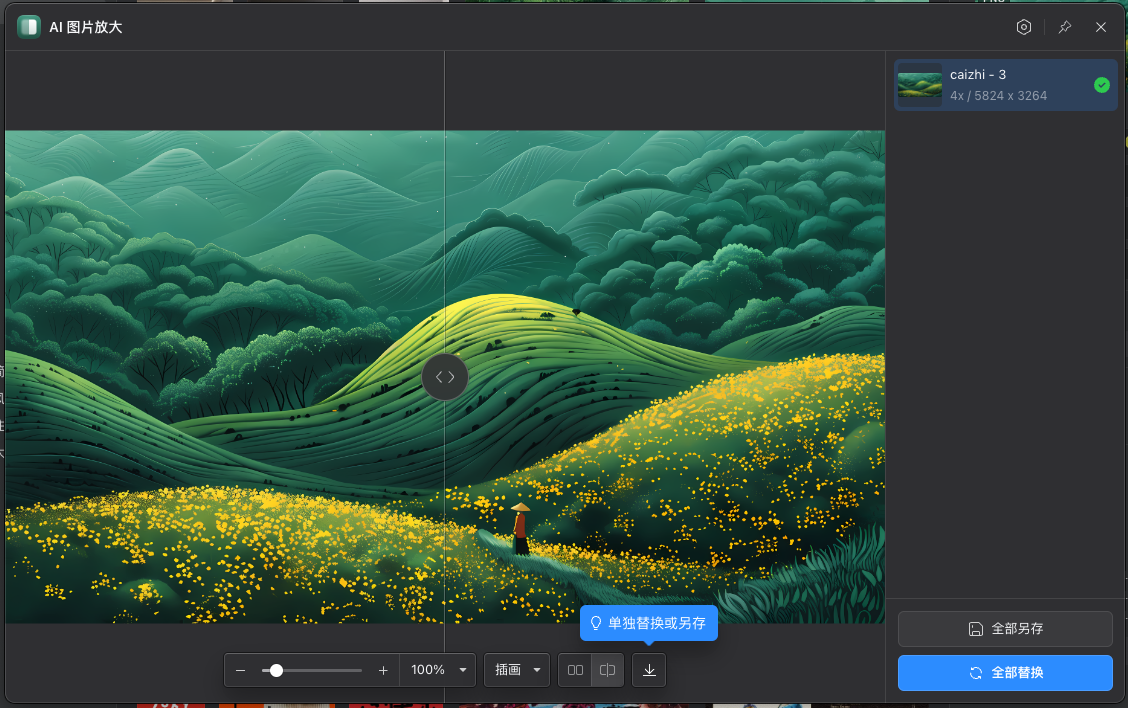
Uses a local AI model to upscale selected images by 4x. Offers two modes: Photo and Illustration. You can view results in split/side-by-side comparison modes. Supports batch processing of images. After successful processing, you can replace all original images with the upscaled versions.
3. More Plugins
Other plugins won’t be introduced one by one. Feel free to explore and try them out if you’re interested.
Conclusion
Eagle is one of the most cost-effective paid software I’ve purchased. It uses a one-time purchase model—pay once, use for life. The development team, through continuous updates, has demonstrated their commitment to expanding the software’s capabilities. I highly recommend it!
💡 Thank you for reading! Feel free to share the article or reach out to discuss.
The RSS feed address for this site has been updated. Please resubscribe, dear readers!